
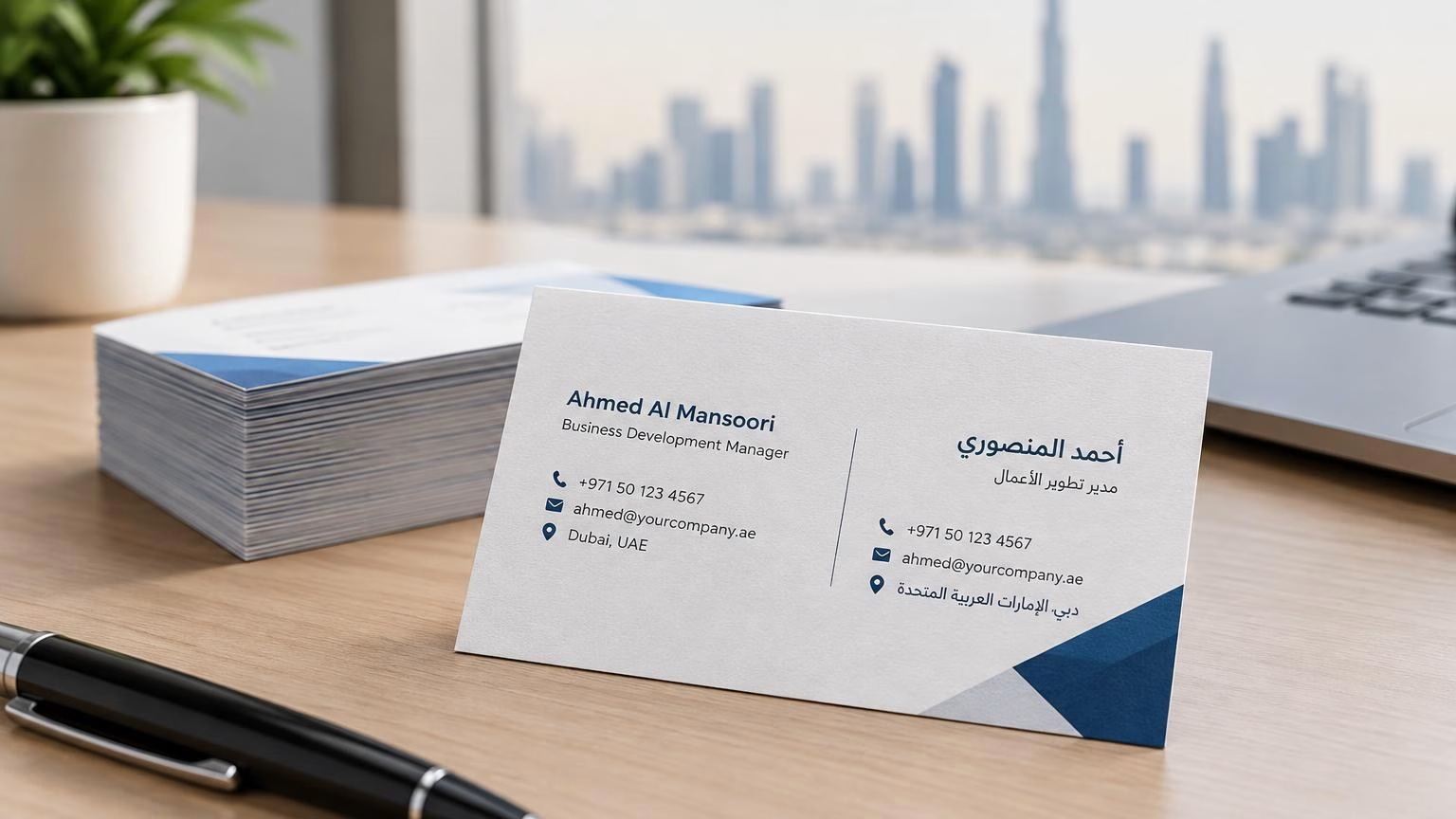
阿联酋阿拉伯语与英语双语名片印刷:排版与校对指南
阿联酋双语名片要同时照顾阿拉伯语从右向左阅读、英语从左向右阅读的习惯。本文介绍版面规划、姓名与联系方式校对、印前文件检查及印量安排,帮助迪拜及阿联酋企业减少常见错误。
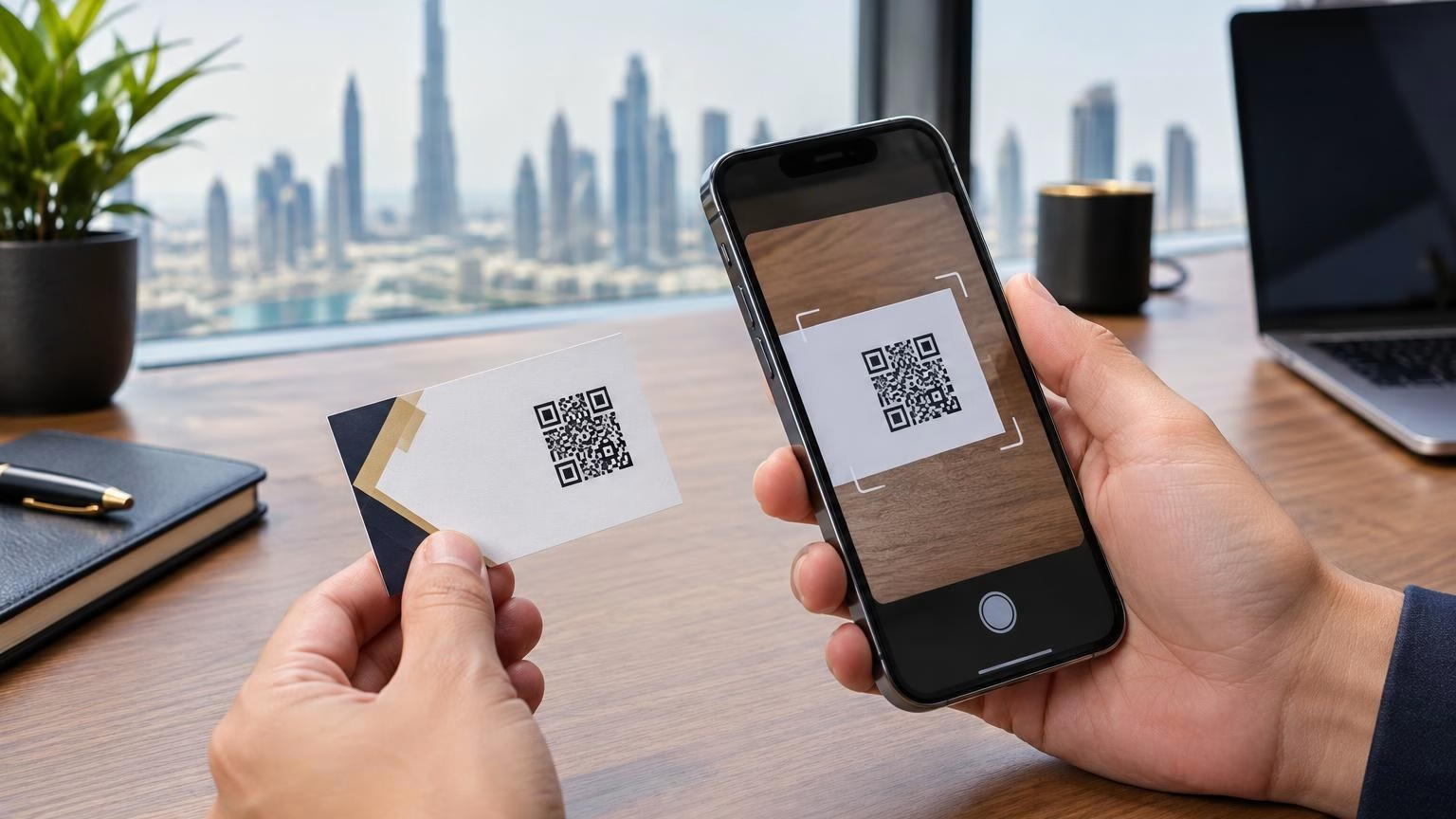
QR code business cards in the UAE work best when the code leads to one useful, mobile-friendly destination and can be scanned reliably from the printed card. Before printing, decide what the recipient should do next, create a clear QR code, and test the final design at its actual size.
A QR code should support the information on your card, not replace the essentials. Keep your name, role, company and preferred contact details easy to find, then use the code to provide a convenient next step for clients, event contacts or potential partners in Dubai and across the UAE.
Link to the next action that is most useful to the person receiving your card. A focused destination is easier to understand than a page that asks visitors to choose from many unrelated options.
Before you generate the code, open the destination on a phone. Check that the page loads, is readable without excessive zooming, and has working links and contact details. Remove temporary notices or content that will be out of date when someone scans the card.
A static QR code contains its destination in the code itself. If the destination changes, you will generally need a new code and new printed cards. Some QR code services offer editable destinations through a redirect, but that depends on the service and its terms. Check that the service will remain available and understand any account, access or renewal requirements before using it.
Whichever option you choose, test the actual code in the final artwork. A QR image that looks correct on screen can still be difficult to scan when reduced, recoloured or placed against a busy background.
Scanability depends on the code, its printed size, its contrast and the space around it. A visually attractive design is not useful if a phone cannot read the code easily.
There is no single QR code size or colour combination that guarantees success in every situation. The practical check is whether the code scans reliably from the final printed card under ordinary conditions.
Test the complete card design, not only the QR image on your computer. A short proofing process can reveal problems with size, contrast, destination or placement before the artwork is approved.
If the code scans inconsistently, first simplify its surroundings and improve contrast. If needed, increase its size or choose a less complex destination URL. Then test again using the final artwork and a printed proof.
The right business card design depends on how and where you will use it. A card for frequent networking needs a clear hierarchy and readable contact details; a card representing a premium service may need a more considered brand presentation. In either case, the QR code should fit the layout rather than dominate it.
Think about the card’s use environment. Cards handed out at meetings or events may be handled, stored and carried around, so prioritise legibility and a layout that keeps key information easy to find. Keep important content away from trim edges and ensure the QR code has enough space around it.
IWPrinting offers business card printing in Dubai. Review your design and QR code requirements when preparing your artwork, and confirm the details of the print job before placing an order.
Good artwork makes it easier to check both the brand presentation and the QR code before printing. Prepare the information and files carefully, then review the proof as a complete piece rather than checking only individual design elements.
If your business stationery needs to look consistent, consider how the card relates to other printed materials. IWPrinting also provides letterhead printing for branded business documents and brochure printing in Dubai for sharing more detailed company or service information.
Use these questions to settle the design before requesting or approving business card printing:
| Decision | What to consider |
|---|---|
| Purpose | What should a recipient understand or do after scanning? |
| Destination | Is the page current, mobile-friendly and relevant to the card recipient? |
| Change needs | Could the destination change before you use all the cards? |
| Layout | Can the QR code remain clear without making contact details difficult to read? |
| Quantity | How many cards are practical for the people, events and period they are intended for? |
| Proofing | Have you checked the final artwork and scanned a printed proof at its actual size? |
Choose one useful destination that matches the reason you are sharing the card. This could be a digital contact card, professional profile, company page or focused landing page. Before printing, confirm that it works on a phone, contains current information and is appropriate for clients or event contacts in the UAE.
Test the final artwork with multiple phones or scanning apps, then scan a printed proof at its actual size. Check the code in ordinary lighting and from different angles. Confirm that it is sharp, has a clear border, is not cropped and opens the intended destination.
There is no universal size that guarantees scanning in every design. Make the code large enough to scan comfortably, preserve clear space around it and test it at the final printed size. If it is unreliable, try enlarging it or simplifying the design around it before approving the artwork.
Choose based on whether you may need to change the destination after printing. A static code generally requires a new code and reprint if the destination changes. A dynamic QR service may allow updates, but check its terms and continued availability before making it part of your long-term business card plan.
You can consider either side, but the code needs enough clear space and should not compete with essential contact information. Give it a clear role in the design, review both sides together and test the complete printed card before approving it.
Decide what the code should do, prepare the destination and test the final artwork at print size. When your design is ready, contact IWPrinting to discuss business card printing in Dubai and confirm the requirements for your order.
阿联酋双语名片要同时照顾阿拉伯语从右向左阅读、英语从左向右阅读的习惯。本文介绍版面规划、姓名与联系方式校对、印前文件检查及印量安排,帮助迪拜及阿联酋企业减少常见错误。
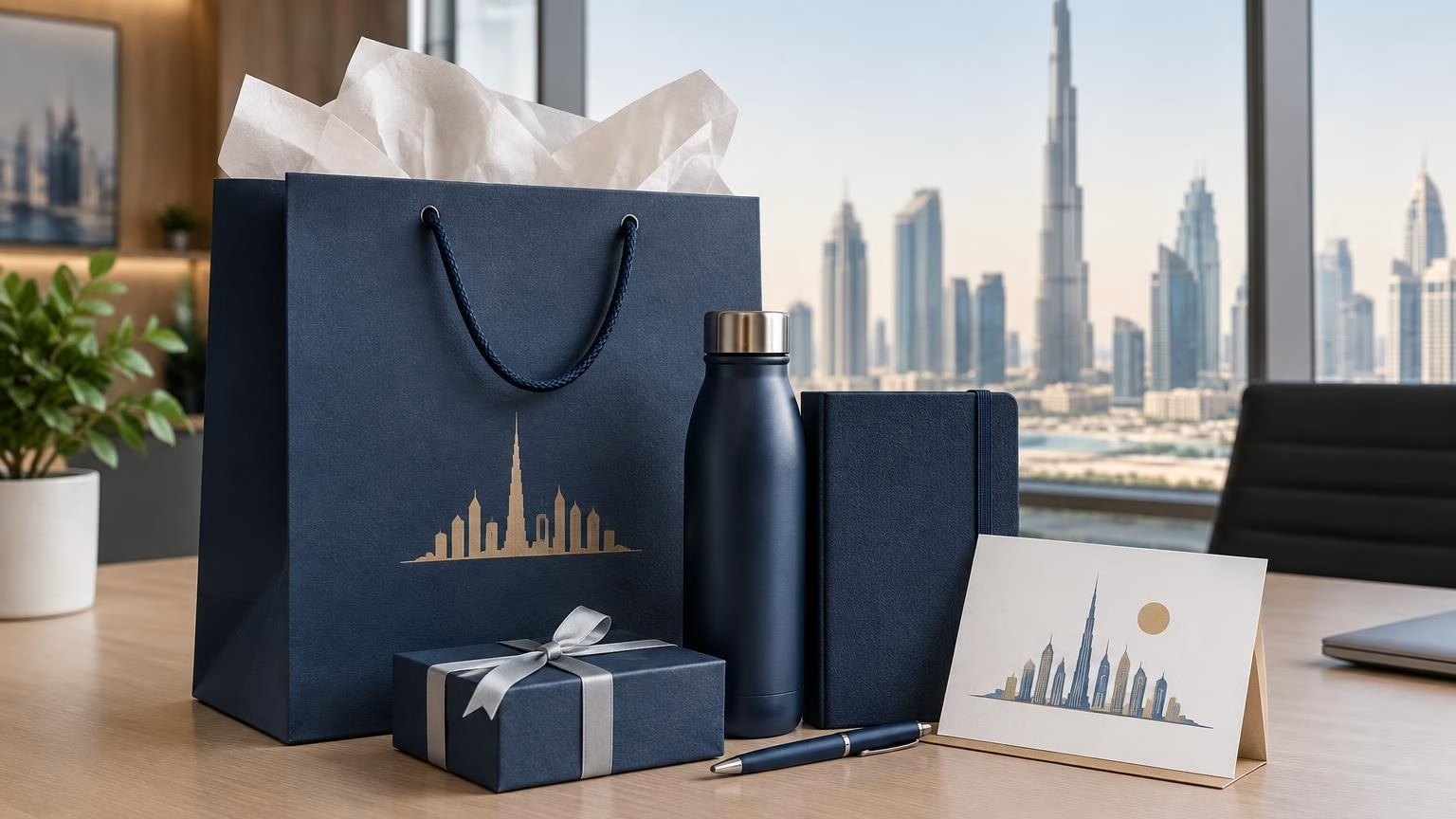
Набор за годовщину работы должен соответствовать стажу и человеку, а не выглядеть как случайный набор сувениров. Разбираем, как подобрать формат, продумать упаковку и подготовить брендирование в Дубае и ОАЭ.
I can help you find the right printing, corporate gifts, signage and display products. Tell me what you need, your quantity, and your budget if you have one.
WhatsApp us