
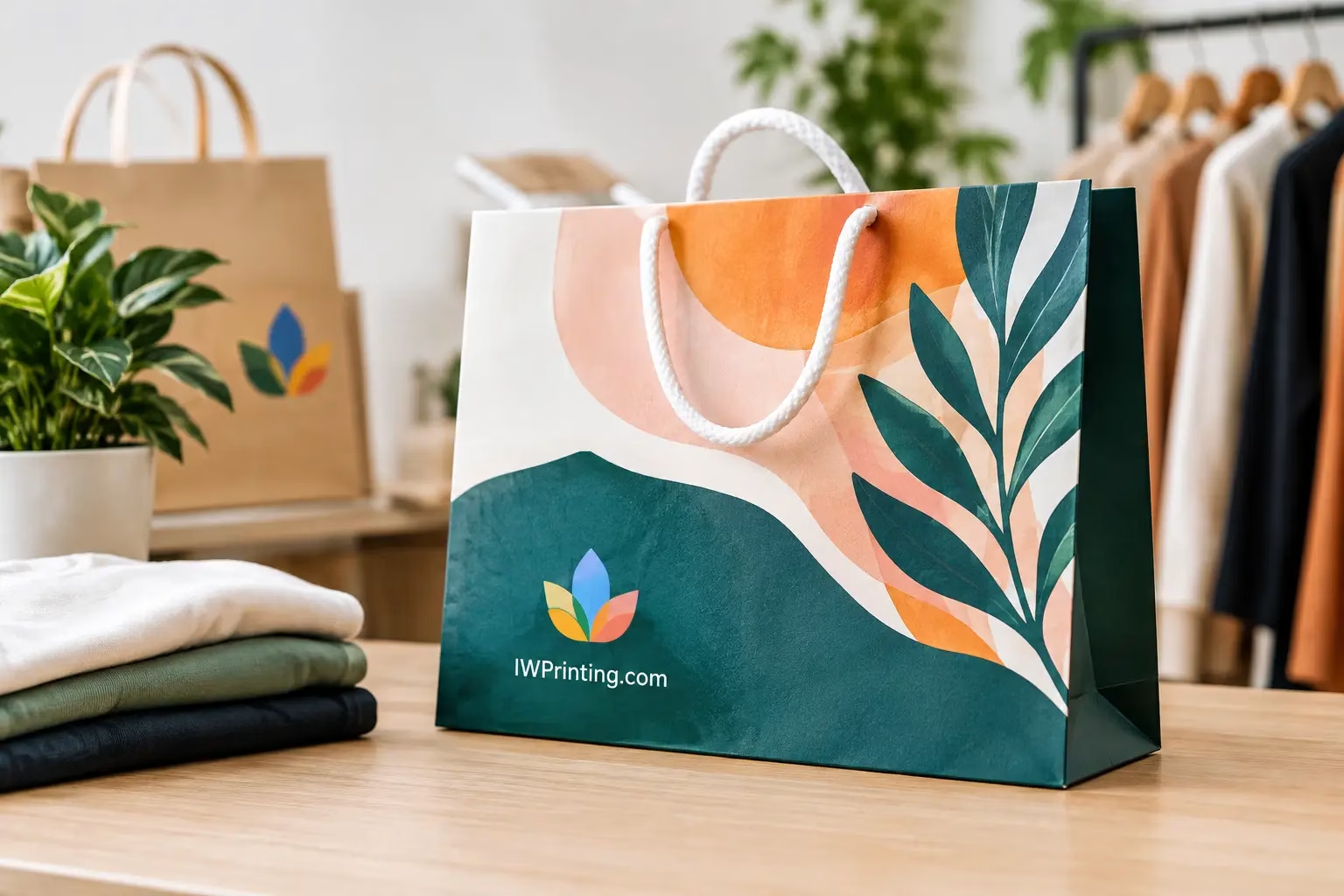
Shopping Bag Printing That Builds Brand Recall
Shopping bag Printing turns every purchase into brand exposure. Choose materials, sizes, finishes, and artwork that fit your product, budget, and customers.
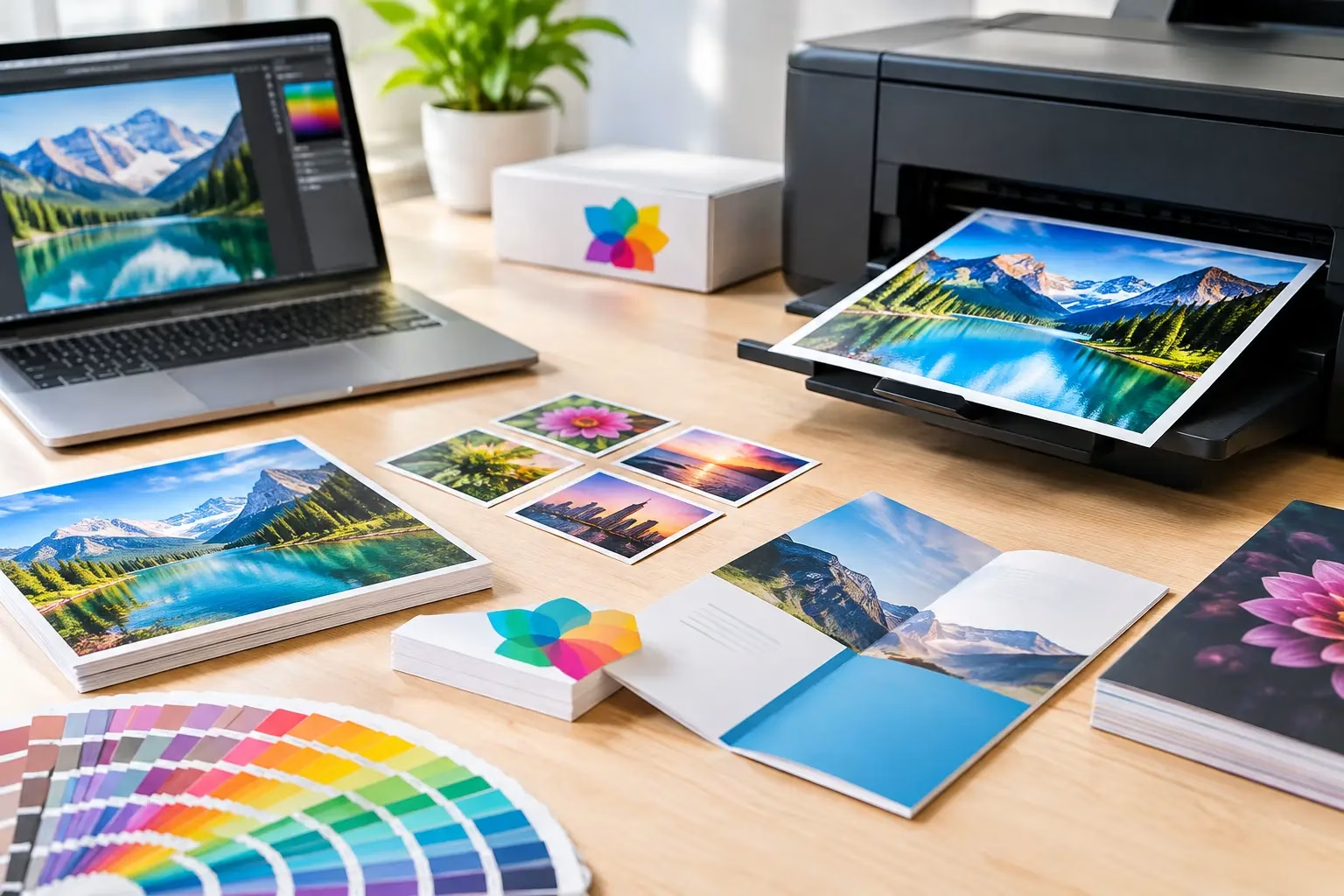
A logo can look perfect on screen and still print with blurry edges, unexpected colors, or missing elements. The difference often comes down to the artwork file, not the printer. If you are asking which file formats print best, the short answer is PDF for most finished print jobs, with AI, EPS, and high-resolution TIFF files also offering excellent results in the right situation.
The best choice depends on what you are producing: business cards, brochures, product packaging, wall graphics, exhibition displays, stickers, or a large outdoor sign. A file suitable for a small social media image is rarely suitable for a 3-meter banner. Sending the right format at the start helps protect quality, avoid production delays, and keep your order moving quickly.
For most commercial print projects, a print-ready PDF is the preferred file format. It preserves fonts, layout, vector artwork, and image quality in one dependable file. PDFs are easy for customers to review and easy for print teams to process, making them a practical option for repeat orders, corporate stationery, flyers, catalogs, menus, and many packaging designs.
That said, PDF is not the only strong option. Vector source files such as Adobe Illustrator AI and EPS are often ideal for logos, signage, decals, cut vinyl, 3D letters, and artwork that must be resized without losing sharpness. TIFF is a high-quality raster format used for detailed photographs and large images. JPEG can work well too, provided it is exported at the correct size and resolution.
The key distinction is whether the artwork is vector or raster.
Vector artwork is built from mathematical paths rather than tiny colored squares. This means a vector logo can be enlarged from a business card to a building sign while keeping clean edges. AI, EPS, PDF, and sometimes SVG are vector-capable formats.
For business branding, vector files are the safest long-term asset to keep. They are especially useful when a design includes logos, typography, icons, line art, or brand patterns. A sharp vector logo will reproduce cleanly on letterheads, exhibition backdrops, vehicle graphics, acrylic signs, branded apparel, and promotional products.
AI files are native Adobe Illustrator files, commonly used by designers. EPS files are an older but widely accepted vector format, particularly for logos and sign production. Both can be excellent, although they may need a final production check for linked images, font handling, and color settings.
A high-quality PDF can contain vector artwork too. This is why PDF is usually the easiest format to send: it combines a finished layout with the benefits of vector elements where they have been used.
Raster files are made of pixels. They are excellent for photos, textured illustrations, and full-color product images, but they cannot be enlarged indefinitely. When a raster file is stretched too far, pixels become visible and the image looks soft or blocky.
TIFF is often the strongest raster format for print because it can retain very high image quality without heavy compression. It is a good choice for large photographic wall graphics, premium brochures, art prints, and image-led packaging. Its main drawback is file size. TIFF files can be too large for easy email transfer, so a file-sharing method may be needed for larger projects.
JPEG is more convenient and widely used, but it uses compression. A carefully exported, high-resolution JPEG can print very well for posters, flyers, menus, and photos. A low-resolution JPEG downloaded from a website or copied from a messaging app will not produce the same result. Re-saving a weak JPEG as a TIFF or PDF will not restore lost detail.
The product matters as much as the file extension. A format that performs well for a brochure may not be the best choice for a laser-cut sign or a full-height exhibition wall.
For business cards, stationery, brochures, flyers, catalogs, menus, and presentation folders, use a print-ready PDF with bleed and crop marks if requested. Keep text and logos as vector elements whenever possible. A PDF exported from professional layout software generally gives the production team the cleanest starting point.
For stickers, labels, die-cut decals, window graphics, and vinyl lettering, provide AI, EPS, or vector PDF artwork. If the item needs a custom shape, the cut line should be clearly set up in the artwork. This ensures the printed design and final cut align accurately.
For large-format signs, wall graphics, roll-up banners, vehicle graphics, and exhibition displays, vector PDF, AI, EPS, or high-resolution TIFF files are usually preferred. Large prints are viewed from farther away, so required resolution can vary by final size and viewing distance. Still, supplying artwork at the correct scale is essential. A small web graphic is not a substitute for production artwork, even if it looks acceptable on a laptop.
For packaging, use a print-ready PDF built on the approved dieline. Packaging artwork must account for folds, glue areas, safe zones, and bleed. This is one area where a few millimeters can affect the finished result, so avoid moving dieline layers or flattening key production guides unless instructed.
For branded merchandise and apparel, vector formats are usually best for logos and single-color designs. High-resolution PNG files with transparent backgrounds can be useful for some full-color print methods, but they should be supplied at the required print size. A transparent background does not automatically mean a file is high resolution.
A good file format cannot fix incorrect setup. Before approving artwork, check the specifications that affect how it will print.
Resolution: For most small-format printed items viewed up close, images should be 300 PPI at their final printed size. Large-format graphics may use lower effective resolution depending on the application, but the file should still be prepared specifically for the final dimensions. Do not judge quality only by image size in megabytes.
Color mode: Commercial printing commonly uses CMYK inks, while screens display RGB light. RGB colors can look brighter on screen than they appear on paper, fabric, vinyl, or board. Converting artwork to CMYK before export gives a more realistic preview, although some color variation is normal depending on material and printing process.
Bleed and safe margins: Bleed is extra artwork extending beyond the final trim edge, usually 0.125 inches for many standard paper products. It prevents thin white edges after cutting. Keep important text, logos, and QR codes inside the safe margin so they do not sit too close to the cut line.
Fonts and linked images: Fonts should be embedded in a PDF or converted to outlines when appropriate. Linked images must be included with source artwork. Missing fonts or links can change the layout, substitute typefaces, or leave blank image areas.
Black values: Small black text is usually best set to 100% black for crisp reproduction. Large solid black backgrounds may require a richer CMYK black mix, depending on the print process and material. This is a detail worth confirming before producing high quantities.
PNG, PSD, INDD, Word, PowerPoint, and Canva exports can be workable, but they require more attention.
PNG supports transparency and can be useful for digital assets and some print applications. However, it is raster-based, so it must have enough resolution at its final print size. It is not the first choice for logo files when a vector version is available.
PSD and INDD are editable Adobe Photoshop and InDesign working files. They can be valuable when a production team needs to inspect layers or make approved adjustments, but they are not always ideal as final customer-supplied files. A high-quality PDF exported from the correct source file is usually more reliable for production.
Microsoft Word and PowerPoint files may be acceptable for simple office documents, but they can reflow text, change fonts, and shift layouts across devices. For professional printing, convert them to PDF after checking page size, margins, and image quality.
Canva can export useful print PDFs, particularly for straightforward marketing materials. Before ordering, confirm that the document is set to the correct final size, includes bleed where required, and uses high-resolution images. Avoid using screenshots or images pulled from search results, as they are often too small for print and may not have commercial usage rights.
Before submitting artwork, open the exported PDF at 100% zoom and inspect text, logos, images, and edges. Confirm the final dimensions, check that no essential content sits too close to the trim line, and make sure every phone number, website address, and QR code is correct. For signage and exhibitions, review the artwork at the intended scale and consider how far away people will stand when viewing it.
If you do not have print-ready artwork, it is better to ask for a professional file check than to risk an expensive reprint. IWPrinting.com can help customers prepare files for business printing, branded packaging, signage, displays, and custom promotional products before production begins.
Choose a PDF for most finished print jobs, keep AI or EPS files for scalable brand artwork, and use TIFF or properly sized JPEG files for high-quality photos. The right file gives your design the best chance of arriving exactly as intended: sharp, accurate, and ready to represent your business well.
Shopping bag Printing turns every purchase into brand exposure. Choose materials, sizes, finishes, and artwork that fit your product, budget, and customers.
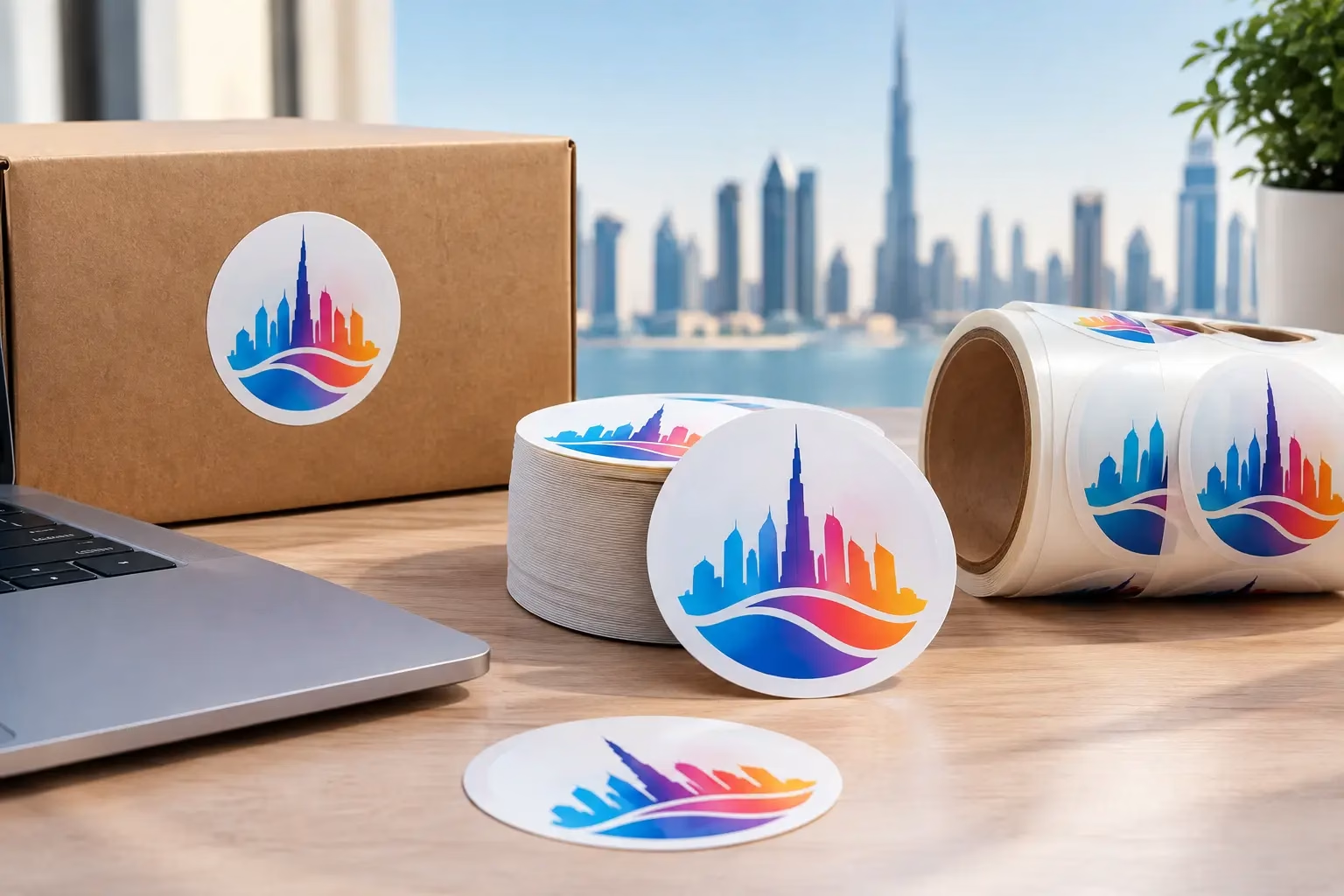
Get Round Sticker Printing in Dubai for product labels, events, and promotions. Choose durable materials, sharp color, custom sizes, and fast delivery.
WhatsApp us
Printing, corporate gifts and signage — tell us what you need and let AI help you find it.
Ask naturally. IWPrint AI can understand your product, quantity, budget and requirement.